Welcome to our Support Portal. Search for answers using the search box below,
or create a support ticket if you cannot find your answer.
Tip: Start typing in the input box for immediate search results.
Not all pop-ups are ads or spam. Some legitimate websites display web content in pop-up windows.
To better experience SWIC websites, you may need to allow pop-ups for eSTORM, swic.edu or InfoShare.
Chrome
Look at your address bar:
By default, Google Chrome blocks pop-ups from automatically showing up on your screen. When a pop-up is blocked, the address bar will be marked Pop-up blocked, with this tiny image:  Click on the image to allow pop-ups.
Turn off/on via your settings:
- On your computer, open Chrome.
- At the top right, click More
 , then Settings
 - Under “Privacy and security,” click Site settings.
- Click Pop-ups and redirects.
- At the top, turn the setting to Allowed or Blocked.
Click HERE for more help from Google, including instructions for mobile devices.
Internet Explorer (IE)
Look for a notification at the bottom of the browser window:

Select Allow once or Options for this site to Always allow pop-ups or go to More settings (the Pop-up Blocker Settings window – see next section).
Access pop-up blocker settings:
- Open Internet Explorer, select the Tools
 , and then select Internet options.
 - On the Privacy tab, under Pop-up Blocker, click Settings.
- Under Address of website to allow, type in *.swic.edu then click Add.
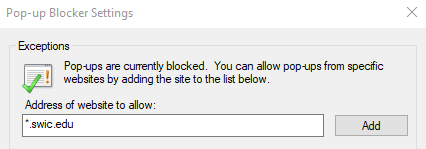
- All SWIC websites will be added to sites allowed to display pop-ups. Click Close.
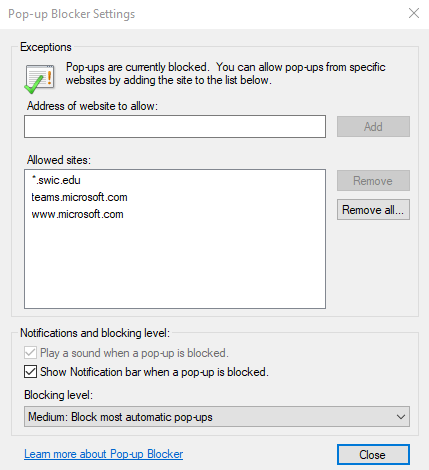
- Click OK to close Internet Options.
Firefox
Look at the address bar/information bar:
When blocking a pop-up, Firefox displays an information bar (if it hasn’t been previously dismissed; if so, see the next section), as well as an icon  in the address bar:

When you click either the Options button, or the icon in the address bar, a menu is displayed with the following choices:
- Allow/Block pop-ups for this site – SELECT THIS TO ALLOW POP-UPS
- Edit Pop-up Blocker Options… – Select this to go to your pop-up blocker settings (see below)
- Don’t show this message when pop-ups are blocked – not recommended
- (show the blocked pop-up) – Select this to view the actual pop-up that was blocked
Access pop-up blocker settings:
- Click the Menu button
 and select Options.
 - Select the Privacy & Security panel on the left.
- Under the Permissions section, find Block pop-up windows, then click on Exceptions…:

- Type in the website you wish to unblock pop-ups on:
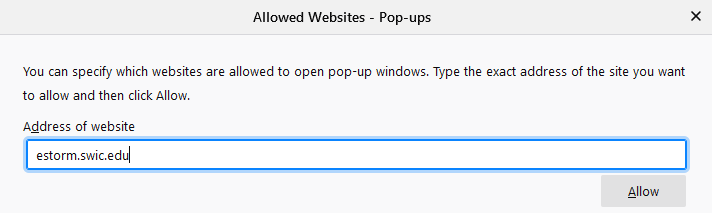
- Click Allow, then Save Changes.
- Close Firefox Options.
Click HERE for more information from Firefox.
Edge
Look for a notification at the bottom of the browser window:

Select Allow once or Always allow.
Adjust via Settings:
- Click the Settings and more button
 (Alt + X).
 - Click Settings
 .
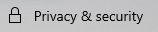
. - Click Privacy & security
 .
. - Scroll to the Security section.
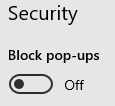
- To turn the pop-up blocker off, toggle the switch to off:
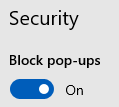
- To turn the pop-up blocker on, toggle the switch on:
Safari – Desktop
- Open Safari and visit the website you would like to allow pop-ups on.
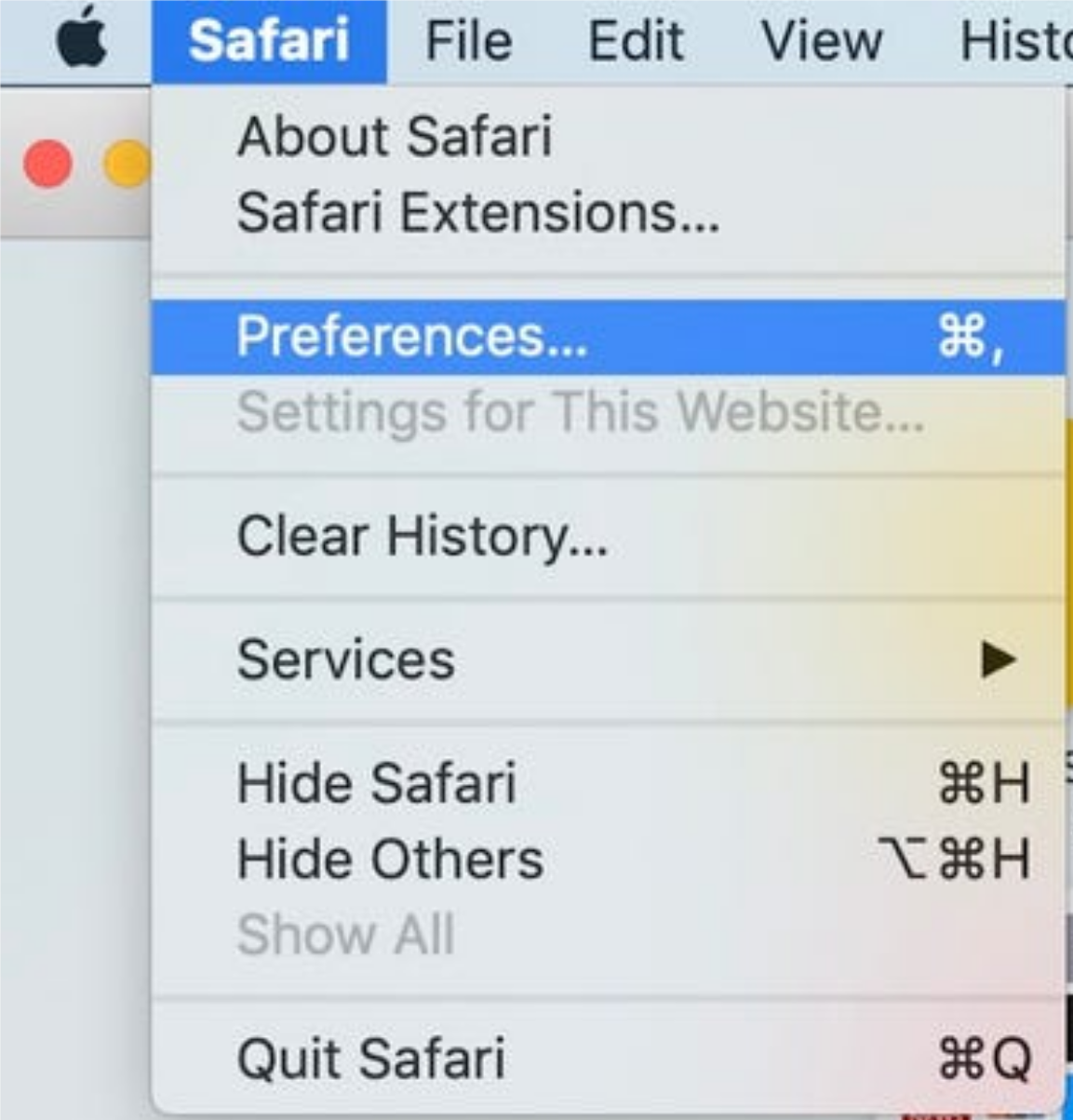
- Click Safari in the upper-left menu, then click Preferences…:
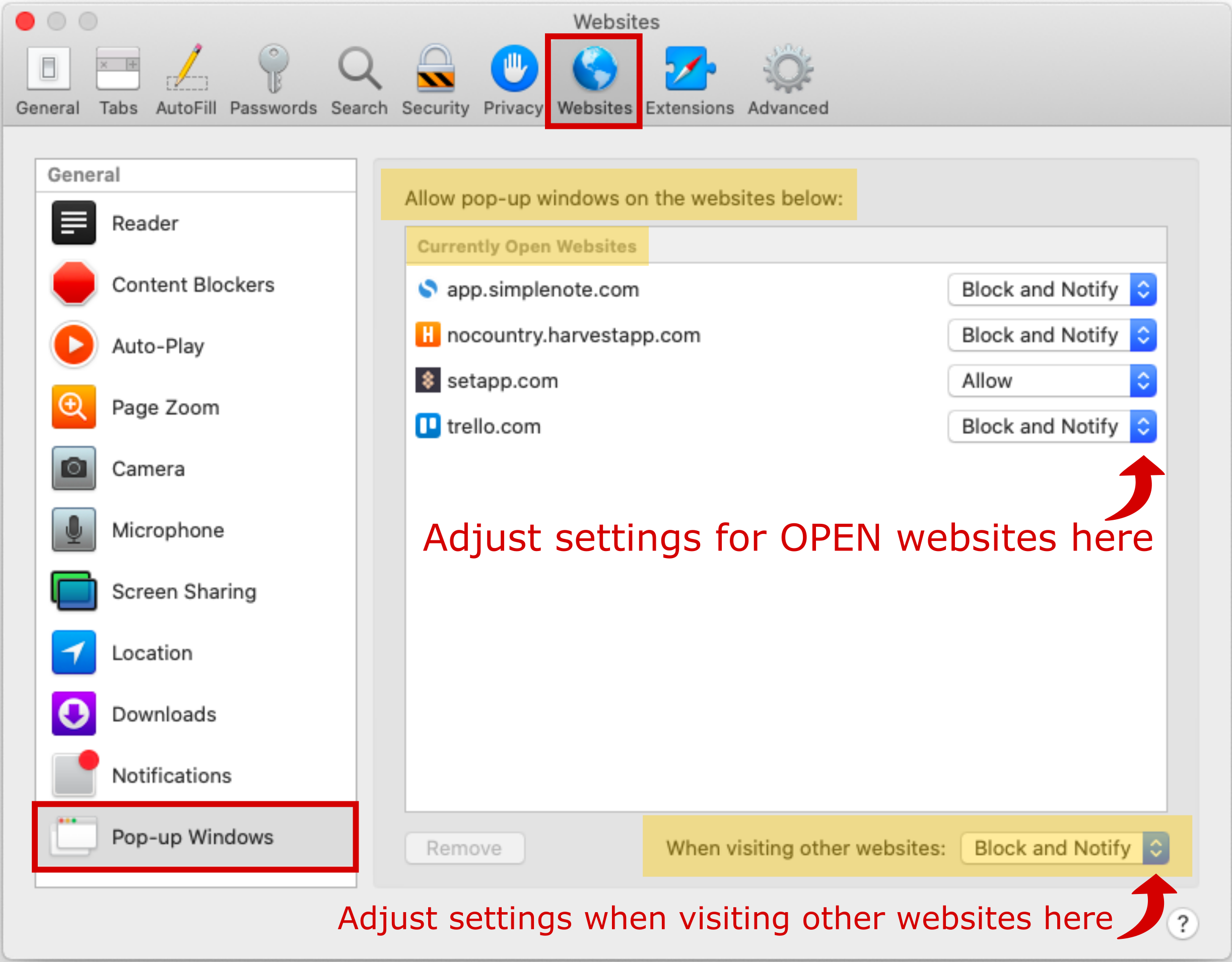
- Click on the Websites tab at the top of the Preferences window.
- On the left, click on Pop-up Windows:
Safari – iPhone/iPad
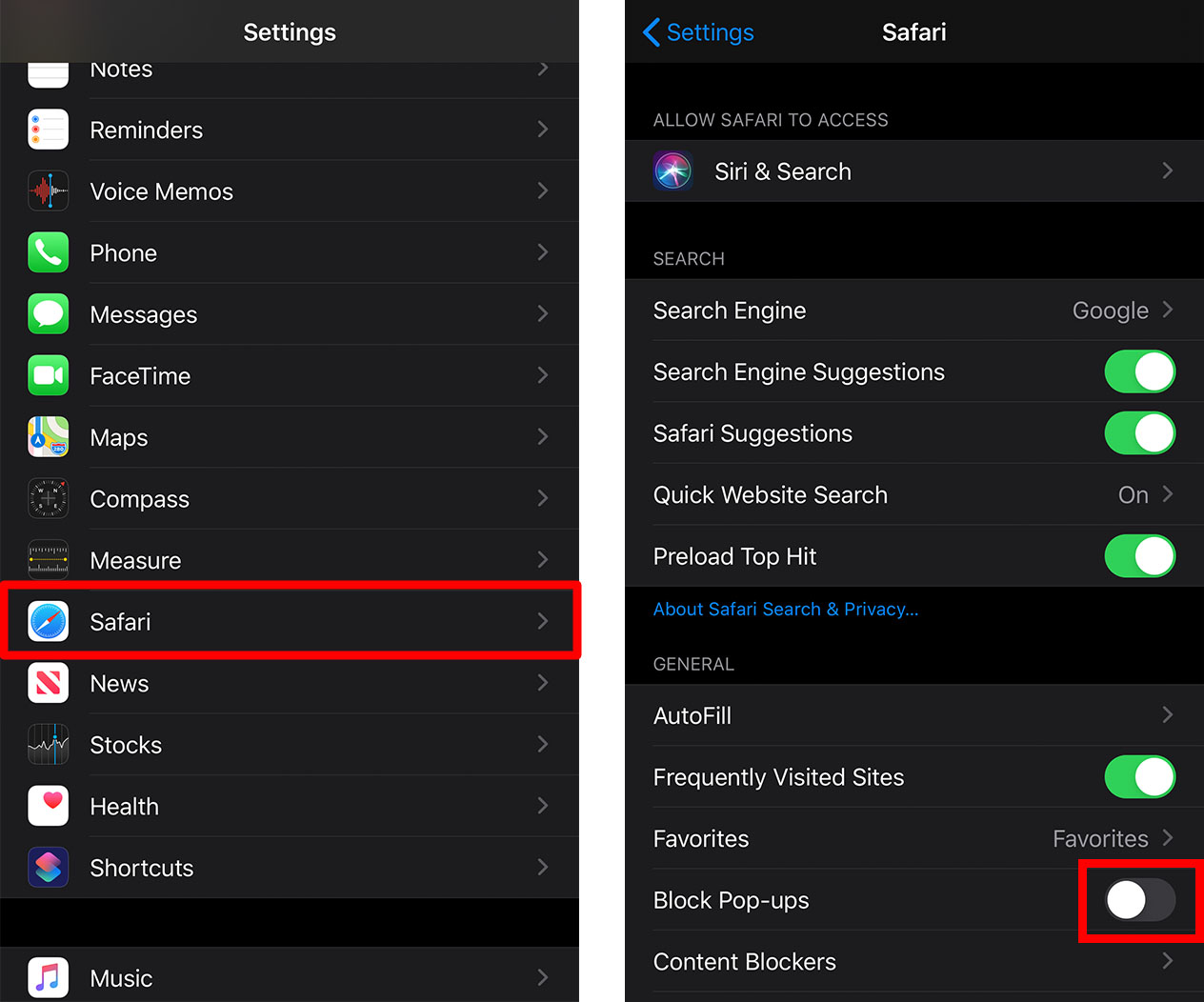
- Open your Settings app:

- Scroll down and select Safari; toggle the Block Pop-ups on or off: