

How Can We Help?
Welcome to our Support Portal. Search for answers using the search box below,
or create a support ticket if you cannot find your answer.
Tip: Start typing in the input box for immediate search results.
Table of Contents
Summary
Departments with multi-function printers require users to enter a PIN to make copies, fax, scan to email or retrieve print jobs via the Follow You. PINs are managed by PaperCut software which allows you to reset your password yourself if you ever forget your password for printers. To do this, perform the following:
Manage or Reset your PIN
NOTE: you can also use your employee ID number instead of a PIN.
- Click HERE to go to the PaperCut portal.
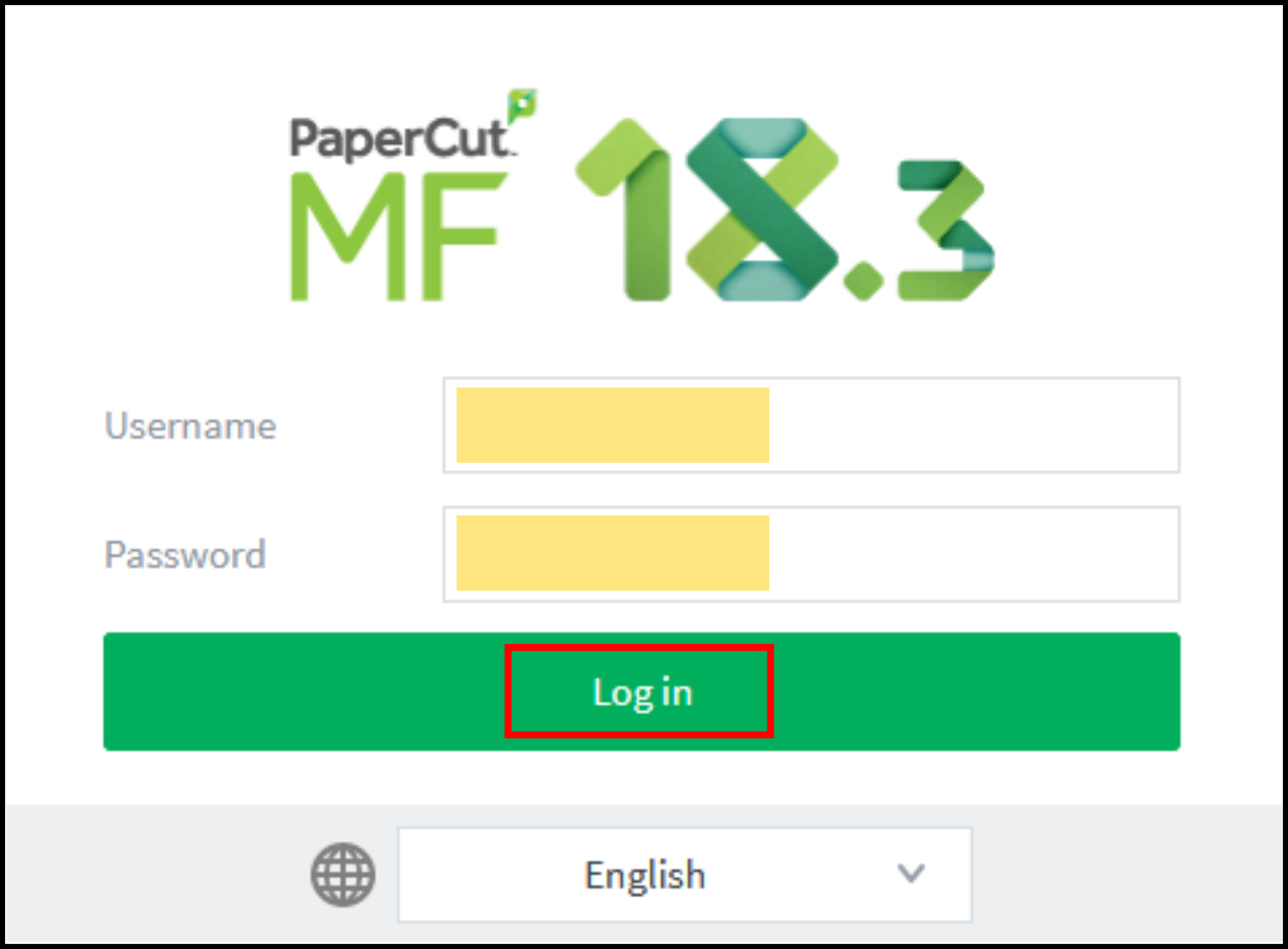
- On the PaperCut login screen, enter your InfoShare username and password, and click log in:
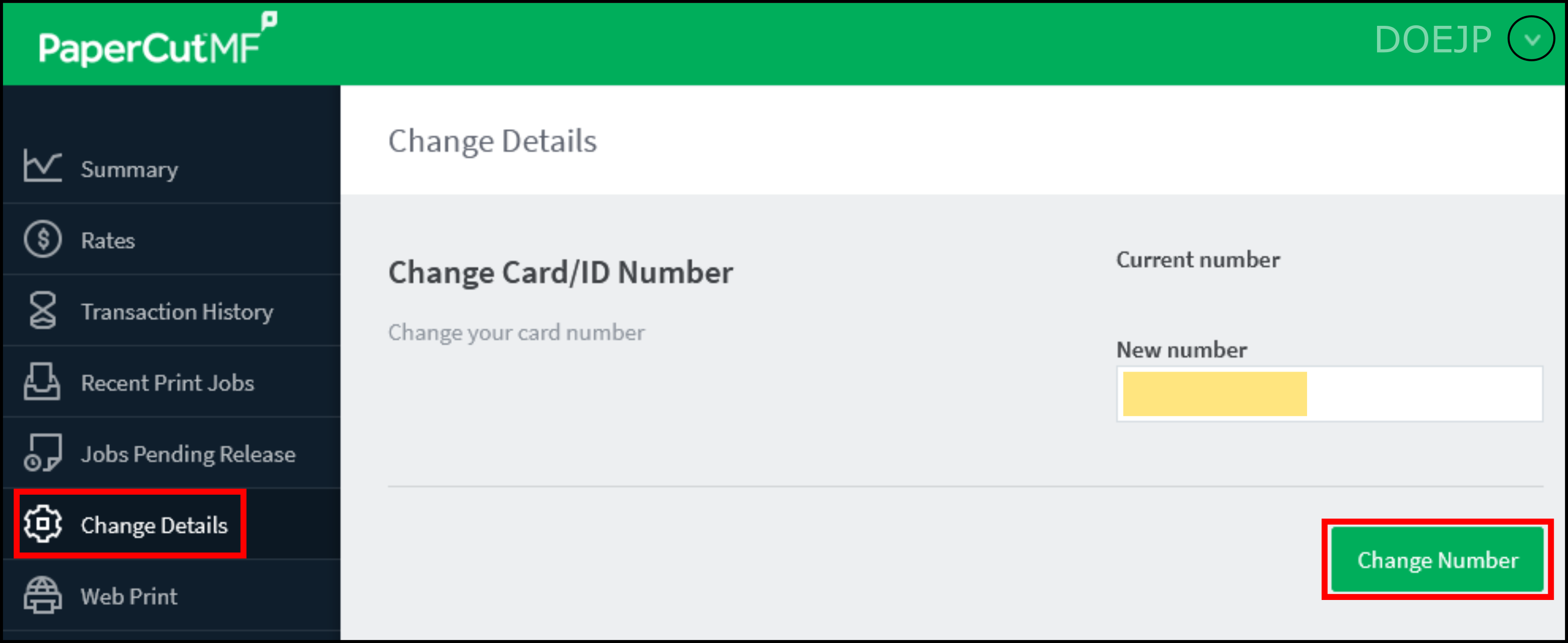
- Select change details from the left menu.
- Enter a 4-8 number PIN in the New number box, and click the Change Number button.
- Click the ‘v’ by your name in the top right corner and select Log out.
Help
Please call or email the Technology Assistance Center or fill out an IT Support Request on InfoShare.