
Welcome to our Support Portal. Search for answers using the search box below,
or create a support ticket if you cannot find your answer.
Tip: Start typing in the input box for immediate search results.
Printable Schedule and Textbook Link
Login to eSTORM and go to the Manage Classes tile.
In the Schedule/Textbooks section, you can find both the printable class schedule and the Your Textbooks button.
Select the semester:
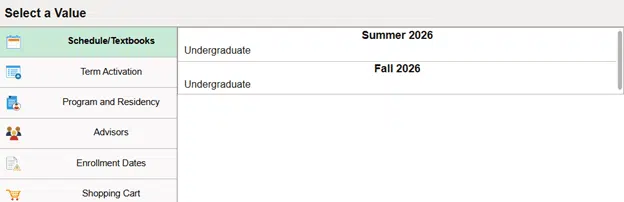
Click the “Printable Page” button at the top of the page to print your schedule. Click the Your Textbooks button at the bottom of the page to have your textbooks for your classes displayed on the Barnes & Noble website: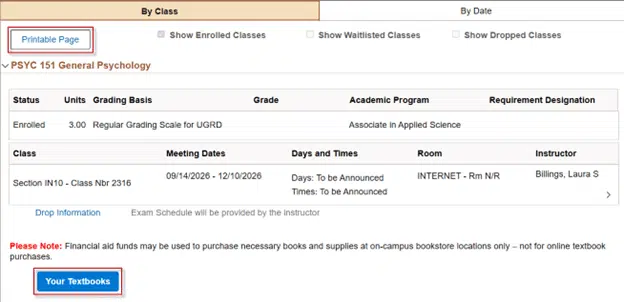
Search for Textbooks on the Barnes & Noble Website
- Go to www.swic.bncollege.com.
- Click the Textbook link in the top menu.
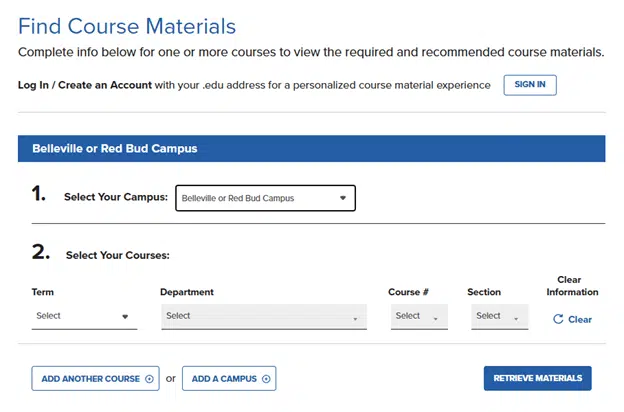
- Select the campus, term, department, course and section for your class(es) and then click the Retrieve Materials button:
- Click the Add to Cart button for any textbooks you wish to buy:
- Go to your shopping cart and checkout.
Bookstore Information
Click the textbook icon  in the upper right of eSTORM or go to https://www.swic.edu/students/services/bookstore/ for important information from the bookstore, including hours, locations and buyback information.