
Skip to main content
How Can We Help?
Welcome to our Support Portal. Search for answers using the search box below,
or create a support ticket if you cannot find your answer.
Tip: Start typing in the input box for immediate search results.
Table of Contents
FACULTY
InfoShare
- Go to infoshare.swic.edu.
- Select Dual Credit Login or Running Start Login.
- Username: your SWIC email address.
- Password: your password.
- Complete the Microsoft multi-factor authentication (MFA) challenge.
- Passwords:
- Always change your password on InfoShare.
- InfoShare will sync your password to email and Brightspace.
- Passwords expire every 365 days.
- Reminders will be sent to your SWIC email address.
- Login to InfoShare and select the Change Password icon on your homepage.
- Reset your own password:
- Login to InfoShare and click the “Set up Security Questions” link.
- This will allow you to use the “Forgot Your Password?” link on the InfoShare homepage.
- Password reset help:
- Call 618-222-7942 or email tech.assistance@swic.edu.
- Please have your employee ID number to verify your identity.
- SWIC Tech Assistance has extended and weekend hours – view HERE.
- Browsers and passwords:
- Many browsers (Chrome, Edge, etc.) will save your passwords automatically.
- Once your password is changed on InfoShare, make sure the browser updates to your new password.
- Password and security question links, once logged into InfoShare:
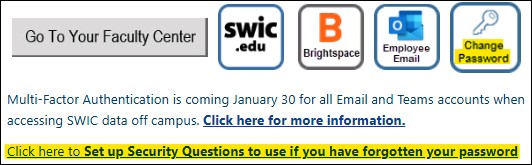
- Always change your password on InfoShare.
Email/MFA
- SWIC uses Microsoft for email and MFA.
- Help with MFA can be found HERE.
- If your organization also uses Microsoft for email, you may need to sign out/switch accounts to view your SWIC email.
- You can also use a different, dedicated browser to access your SWIC email/InfoShare to avoid switching accounts.
- Login to outlook.office365.com for email.
- Username: your SWIC email address.
- Password: your InfoShare password.
- Complete the MFA challenge.
- New device/phone number?
- Contact SWIC Tech Assistance to have your MFA reset.
- Please have your employee ID number to verify your identity.
- Forgot your phone today?
- Contact SWIC Tech Assistance to have a Temporary Access Pass (TAP) assigned to your account.
- This will allow you to complete your MFA challenges for up to 8 hours if you forget your device.
- Please have your employee ID number to verify your identity.
Brightspace
- Go to swic.brightspace.com.
- Username: your SWIC email address.
- Password: your InfoShare password.
- Complete the MFA challenge.
- Notes on Brightspace:
- NEW Faculty – your Brightspace account will be created when you are assigned to a class.
- Contact your SWIC HS Partnership representative for account creation questions.
Help and Troubleshooting
- If InfoShare or other websites aren’t performing as expected, you may need to clear cache – directions are HERE.
- Otherwise, reach out to SWIC Tech Assistance for further help.
STUDENTS
eSTORM
- eSTORM is the student portal, where students can add/drop classes, view unofficial transcripts and much more.
- Go to estorm.swic.edu.
- User ID: student ID number
- Password: their password
- Passwords:
- Passwords expire every 365 days.
- Reminders are sent to their SWIC student email accounts.
- Students need to do all password resets on eSTORM to keep their email and Brightspace passwords in sync.
- Expired or forgotten passwords can be reset by using the “Forgot Password?” link after clicking the Sign In tile on eSTORM. Full directions are HERE.
Student Email/MFA
- SWIC uses Microsoft for email and MFA for student accounts.
- Students should check their eSTORM Student Center to verify their student email address; numbers may be added to prevent duplicate accounts.
- Help with student MFA can be found HERE.
- Login to outlook.office365.com for email.
- Username: your SWIC student email address.
- Password: your eSTORM password.
- Complete the MFA challenge.
- New device/phone number?
- Contact SWIC Tech Assistance to have your MFA reset.
- Please have your student ID number to verify your identity.
- Forgot your phone today?
- Contact SWIC Tech Assistance to have a Temporary Access Pass (TAP) assigned to your account.
- This will allow you to complete your MFA challenges for up to 8 hours if you forget your device.
- Please have your student ID number to verify your identity.
Student Brightspace
- Go to swic.brightspace.com.
- Username: your SWIC student email address.
- Password: your eSTORM password.
- Complete the MFA challenge.
- Notes on Brightspace:
- Students NEW to SWIC’s Brightspace – your account will be created two weeks before your classes begin. Try logging in then.
- ALL students – please allow 24-48 hours for enrollment changes to be reflected on Brightspace. Class access will be granted on the start date of that class.
Student Help and Troubleshooting
- If eSTORM or other websites aren’t performing as expected, you may need to clear cache – directions are HERE.
- Our Student Technology knowledge base on SWIC.edu has several help topics available 24/7.
- Otherwise, reach out to SWIC Tech Assistance for further help.